

I use a scientific calculator when I need an answer quickly, but I also want to see whether the expression I entered actually makes sense. That is where Scientific calculator plus 991 has been useful for me. It is an education app from Tools for student, built around the familiar layout of an advanced scientific calculator rather than a lesson-based learning system. The app is free to install, with optional in-app purchases ranging from $0.99 to $4.99 per item, and its Everyone age rating makes it suitable for schoolwork as well as everyday calculations.
My first impression was that it aims to replace the physical calculator many students carry in a backpack. The main attraction is not a flashy course or a collection of explanations; it is the ability to work through scientific expressions, check results, and switch between different calculator styles when a problem requires it. That focus makes it practical, although beginners may need a little time to become comfortable with the number of keys and settings.
How I use it for everyday calculations
My baseline workflow is simple. I open the calculator, decide what kind of expression I am entering, and then check the mode before typing a long formula. This small pause matters because trigonometric calculations can produce very different answers depending on whether the calculator is using degrees or radians. I would not treat the first result as trustworthy until I have checked that setting.
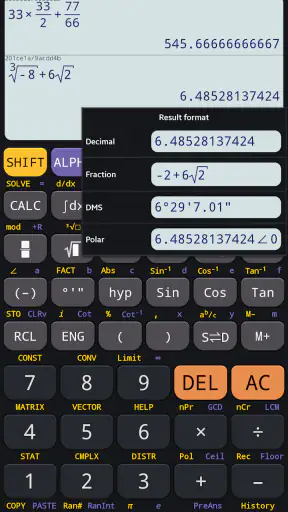
For ordinary arithmetic, the interface behaves much like a familiar handheld scientific calculator. I can enter a mixed expression instead of breaking it into several separate calculations, which is helpful for homework involving fractions, powers, roots, and parentheses. I prefer this approach because it leaves the complete calculation visible while I work, reducing the chance of losing an intermediate number or copying it incorrectly.
A realistic example is checking a physics exercise after class. I might calculate a value that combines a measured number, a conversion factor, and a square root. Rather than reaching for a basic phone calculator and doing each part separately, I enter the complete expression, review the brackets, and compare the result with the rough estimate I made on paper. The app is especially useful here as a checking tool: it helps me find a misplaced sign or an omitted parenthesis before I submit the work.
The calculator is also handy outside school. I have used scientific functions for quick geometry checks, unit-related arithmetic, and estimates involving percentages or powers. It is more capable than the calculator that comes preinstalled on many phones, but it still opens quickly enough for a short calculation. If I only need to add a few prices, however, I would use the basic phone calculator instead. Scientific calculator plus 991 is at its best when the problem has a structure that ordinary arithmetic apps do not handle comfortably.
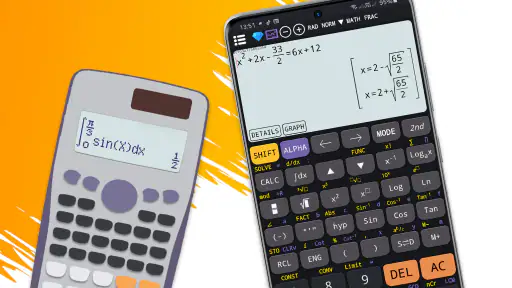
The app’s store summary also points to simulator options associated with the 115 and 300 plus calculator styles. I see that as a useful choice for people who are moving from a particular physical calculator layout or who want a more familiar arrangement for a class. The important point is to choose one layout and stay with it while learning. Constantly changing the arrangement can slow down simple work, especially when you are already concentrating on the mathematics.
One habit has improved my accuracy: I enter a short test expression after changing a setting. For example, after switching an angle mode, I use a simple trigonometric value whose expected behavior I know. This takes only a moment and confirms that the calculator is ready before I enter the real problem. It is more reliable than assuming the last mode used was the correct one.
Settings I check before trusting an answer
The most important setting for me is the angle unit. Degree mode is usually the natural choice for school geometry and many practical measurements, while radians appear frequently in higher-level mathematics and calculus. A correct expression in the wrong mode can look perfectly reasonable, so I make this check part of my routine rather than something I remember only after getting a surprising result.
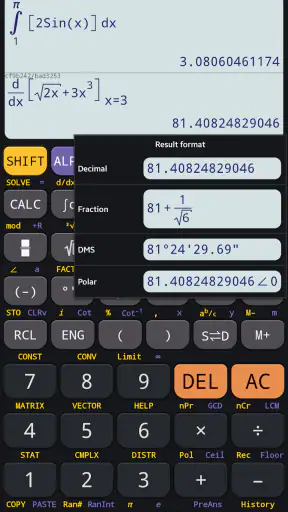
I also pay attention to how results are displayed. A scientific calculator can show values in decimal form or in a format that emphasizes powers of ten, and the most convenient display depends on the problem. For very large or very small values, scientific notation is easier to read and compare. For a classroom answer that expects a familiar decimal, I prefer to see the result in a form I can copy without additional interpretation.
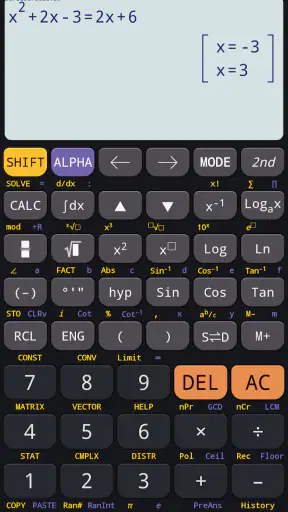
Before entering a long expression, I look at the active calculator style and the available function keys. A layout that resembles a physical 991-style calculator can be efficient once I know where the secondary functions are, but it may feel crowded on a small phone screen. I have found that turning the phone sideways, when the device supports a more spacious orientation, can make key selection easier. I still slow down for functions printed above or beside the main keys because it is easy to press the primary operation by mistake.
Another useful setting habit is to avoid changing several things at once. If I switch the angle unit, display preference, and calculator simulator together, I may not know which change affected the result or the way the keys behave. I change one item, test it, and then move to the next. This is less exciting than exploring every menu immediately, but it creates a predictable setup that is easier to reproduce before an exam or study session.
The app is free, which makes it easy to try without committing to a purchase. Optional purchases are present, so I would check what an individual item changes before paying for it. I do not see a reason to purchase anything merely because the calculator works well for basic scientific use. A paid option may make sense if it removes a specific annoyance or provides a layout I genuinely need, but the decision should be based on that concrete benefit rather than on the assumption that every advanced-looking option is necessary.
Its current version is 7.4.7.69, and it runs on Android versions starting with 7.0. That broad compatibility is useful for students using an older phone, although screen size and touch responsiveness still affect comfort. On a compact display, a dense scientific layout demands more careful tapping. I would recommend testing the keys with a few practice expressions before relying on it during timed work.
Shortcuts and repeatable patterns that save time
The biggest speed improvement comes from preparing the expression mentally before touching the screen. I decide where the parentheses belong, identify powers and roots, and note whether the problem uses degrees or radians. This prevents the common habit of entering a formula from left to right while improvising its structure. The app can calculate quickly, but it cannot correct an expression that was organized incorrectly.
I also reuse a consistent sequence for multi-step problems. First I enter the main relationship, then I check the displayed expression, and only after that do I evaluate it. If I need to change one value, I edit that part instead of clearing everything and starting again. This is particularly useful when comparing several scenarios, such as testing different lengths in a geometry formula or checking how a changed measurement affects a result.
For repeated calculations, I keep the variable part visually separate from the fixed part. Suppose I am comparing several values that use the same conversion factor. I enter the fixed factor carefully once, then replace only the changing number. This reduces repeated typing and lowers the risk of introducing a different factor in the middle of a series of answers. It also makes the pattern easier to audit when I review my work later.
When I am checking an answer from handwritten work, I do not immediately type the entire expression. I first estimate the size and sign of the result. If a length calculation should be positive and roughly near a certain range, an answer with a negative sign or an unexpectedly huge exponent tells me to inspect the input. This is a better use of the app than treating it as an unquestionable answer machine.
There is also a practical difference between using the app for learning and using it for submission. For learning, I may enter the complete expression and compare it with my manual steps. For submission, I still write the method separately because the calculator result alone does not explain why the formula is appropriate. Students who rely on the app without understanding the equation may get a correct number for the wrong problem.
I find simulator choice matters more than it first appears. If I am practicing with a physical calculator in class, matching the app’s general arrangement can help build muscle memory. If I am only checking homework, the most comfortable layout is usually better than the most authentic one. That is a genuine trade-off: familiarity with a classroom device may justify a denser interface, while quick home calculations favor ease of tapping.
The app’s strong rating of 4.8, based on around 556 thousand ratings, suggests that many users find this calculator dependable for their needs. Its reach is also substantial, with over 50 million installs. I would treat those figures as evidence of broad appeal rather than proof that it suits every learner. A large user base cannot remove the need to check modes, understand notation, or decide whether a physical calculator is required in a particular exam.
Where the advanced calculator approach reaches its limits
My main reservation is that a scientific calculator is not the same thing as a mathematics tutor. It can help me evaluate an expression, but it does not replace an explanation of why a formula works. Someone learning trigonometry for the first time may need worked examples, visual diagrams, and feedback on each step. For that person, a dedicated learning app or a teacher’s explanation would be a better companion, with this calculator used afterward for verification.
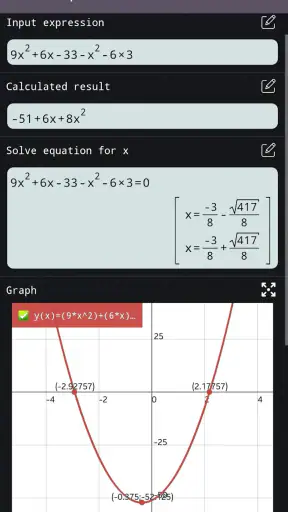
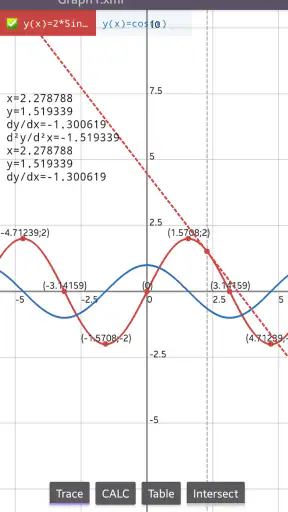
I would also be cautious with long expressions on a phone. Touch input is less forgiving than physical keys, and a single missed press can change the result without being obvious. The more complicated the formula, the more valuable it becomes to inspect the entered expression and calculate in smaller sections. If the task involves many variables, symbolic rearrangement, graphs, or a need to show algebraic steps, a computer algebra system or graphing tool will usually be more appropriate.
There is a difference between numerical confidence and mathematical confidence. The app can return a precise-looking decimal even when the input measurement is approximate or the selected model is unsuitable. In science work, I still consider units, significant figures, and the quality of the original measurement. I use the calculator to handle arithmetic, not to decide whether my assumptions are sound.
Students should also check examination rules before using a phone-based calculator. Some tests allow only approved physical calculators, and a phone may be prohibited regardless of how capable the app is. In that situation, this app remains useful for practice at home, but it should not become the only calculator layout a student knows. Practicing occasionally with the permitted device avoids an unpleasant surprise under time pressure.
The app may not be the right choice for someone who wants a completely minimal interface. A basic calculator is faster for tips, shopping totals, and simple bills because it presents fewer decisions. Likewise, users who need graphing, equation solving, formal symbolic manipulation, or detailed statistical analysis should look toward specialized tools. Scientific calculator plus 991 occupies a middle ground: more capable than a basic calculator, but more focused than a full mathematics workspace.
Another limitation is the learning curve created by multiple calculator styles. Having simulator choices can be helpful, but it can also make the first session feel busier. I recommend choosing one style, learning the common keys, and postponing less-used functions until a real problem requires them. Trying to memorize the entire layout at once is inefficient and can make the app seem harder than it is.
Who will get the most from it?
I would recommend it to students in secondary school, college learners working with scientific expressions, and anyone who wants a capable calculator available on an Android phone. It is especially suitable for people who already understand the basics of arithmetic and want a convenient way to check trigonometric, exponential, root, and multi-step calculations. The simulator approach is valuable for users who are accustomed to a 991-style calculator and want a familiar digital alternative.
It is also useful for adults who occasionally need more than a basic calculator but do not want to carry a separate device. A quick geometry estimate, a technical conversion, or a calculation involving powers can be handled without opening a larger productivity tool. Because the app is free to start and carries an Everyone rating, it is easy to keep available for occasional use rather than treating it as a specialized purchase.
I would steer beginners toward using it alongside instruction, not instead of instruction. The keys may be understandable, but the app does not automatically teach good mathematical habits. A learner should know what result to expect approximately, which angle unit is appropriate, and how to write the underlying formula. Once those habits are in place, the calculator becomes much more useful and much less intimidating.
People who prefer a physical keypad may also want to keep a handheld calculator for serious study. Physical keys provide tactile feedback and often feel more reliable during long sessions. The phone app wins on convenience and availability, while the handheld device can win on speed, battery independence, and exam compatibility. I see them as complementary rather than direct replacements in every situation.
My verdict after building a steady routine
Scientific calculator plus 991 succeeds because it stays focused on a job I often need: entering and checking scientific calculations without carrying another device. The 115 and 300 plus simulator options give it a useful connection to familiar calculator formats, while the scientific layout supports work that a standard phone calculator handles poorly. For me, its real value appears after I establish repeatable habits around angle modes, expression structure, and result checking.
I would not choose it as a substitute for a graphing calculator, a symbolic mathematics system, or a teaching platform. Its strengths are numerical calculation, convenient access, and a familiar scientific-calculator workflow. Its weaknesses are the learning curve of a dense touch interface and the risk that users may trust a polished result without checking the input or the mathematics behind it.
Overall, I think it is a sensible free tool for students and practical users who need scientific functions on Android. The app has been available since May 1, 2020, and its current version shows that it remains an actively maintained option within its focused category. My advice is to install it, select one layout, confirm the angle and display settings, and practice with a few expressions before using it for important work. The best results come from treating it as a careful calculation partner, not as a replacement for understanding the problem.


